How to manually transform a pdf book into an EPUB or MOBI e-book
Traduzione in Italiano: Come convertire manualmente da PDF a EPUB o MOBI
If you want to transform a pdf book into an EPUB e-book to read on your e-reader device, this is how to do it. I will be using a Linux computer, but most of the applications I will use also exist on Mac and Windows.
This is the method I used to edit Magnus Hirshfeld’s book.
Automatic conversion
For some e-books, an automatic conversion could be sufficient. Using Calibre, or its command line utility ebook-convert, you can easily convert some types of pdf books into the e-book format.
Calibre is a e-book management application that includes a e-book viewer, EPUB editing software, and e-book conversion. You can download Calibre here, but I simply installed it with
sudo apt install calibreIn calibre, to convert an e-book, you just have to import it, selecting the option open with calibre, and click the “convert” button. You also can convert e-books from command line with e-book-convert, with the following syntax.
Usage: e-book-convert input_file output_file [options]This usually didn’t work for me, and the resulting EPUB was just a series of images.
Manual conversion
Let’s say you have a scan of the pages of the book, and you want to convert it into a EPUB or a MOBI format. First, you should check if the pdf has highlightable, searchable text. If it does, you can skip right to the next part.
Use OCR on your PDF
You can generate selectable text in your pdf using OCR(Optical Character Recognition), using a python tool called OCRmyPDF. Here is the installation guide.
Then you can call it from command line with:
ocrmypdf input_pdf_or_image output_pdfThis process will take some time. One way to improve your OCR is to specify the language of the document.
ocr-my-pdf myfile.pdf myfile1.pdf -l engIf Tesseract is not installed in your computer, this is how to install it. If the language of your PDF e-book is not installed yet, in Linux, you can install it with
sudo apt install tesseract-ocr-[lang]where [lang] can be ‘all’ or a 3-digit ISO 639-2 Code for the language you want to install, for example ita for Italian, and eng for English.
If everything worked, you should have a highlightable PDF file.
Extract text from the file
To extract the text from the file, I’m using a utility called pdf-to-text, which will only extract the text contents from the pdf file. You can also find pdf-to-text converters online. It can be installed with
pip install pdftotextAnd it can be called with the following syntax:
Usage: pdftotext [options] <PDF-file> [<text-file>]So, to convert my pdf e-book to a markdown text file, I will call:
pdftotext myfile1.pdf myfile.mdI’m saving the file as a markdown file, with the extension .md. This will allow me to insert headings, lists and link images into the file. We now have the very raw contents of the book. It’s time to format and edit it.
Markdown syntax is very easy and quick to learn. After editing this text file, we will convert it to the EPUB format using Calibre or pandoc.
The actual editing
I will be using the Vim editor, but you can use any text editor that supports regular expressions and spell-checking, such as the gedit text editor, or the standard notes application on your computer.
In Vim, substitution works like this:
:%s/old/new/gcThe two dots indicate that you are writing a command. % is to substitute on every line. old is the regular expression you want to substitute, new is the regular expression you want to substitute with. g means that you want to substitute every occurrence of the regular expression on the line. c means that you want to be asked before making the substitution.
I will share the regular expressions I’m using to solve common problems I found, but you can create your own regular expressions. To do that, I strongly recommend using regexr.com. As you will see, in Vim you will need to escape some characters, such as “(” and “+”, that are not usually escaped in regular expressions. Here is a guide on regular expressions in Vim.
Most useful regular expressions
For a detailed explanation of every regular expression, copy and paste it into regexr.com. Before using these, you should decide if you prefer your paragraphs to be separated by a single line, or by double lines. This will be important in the conversion process. In calibre, you will be able to choose, but in pandoc paragraphs are separated by one empty line.
Remove the space between paragraphs:
:%s/\([^\.\?\!A-Z0-9]\)\n/\1 /c| Old | New |
|---|---|
([^\.\?\!A-Z0-9])\n |
\1 |
\1 is a capture group.
Be very careful with this: sometimes you want to keep the space between paragraphs, or else the text will become one huge block. This is useful to unite lines that have been separated by page breaks.
Join lines:
:%s/\(\l[^.;!?:)]\)\n\+\(\s\n\+\)*/\1 /c| Old | New |
|---|---|
(\l[^.;!?:\)])\n+(\s\n+)* |
\1 |
Except lines that end with a period, an exclamation point, etc.
Remove page numbers
:%s/\d\+\s*[;|]*\n//c| Old | New |
|---|---|
\d\+\s*[;|]* |
Page numbers are often followed by : or | in the documents I saw, so I’m also going to remove those symbols.
Delete page headers (select one by one):
:s/\n\u\+\n/ /c| Old | New |
|---|---|
\n\u\+\n |
|
Remove hyphens inside of words:
:%s/\(\l\)\- \(\l\)/\1\2/cg| Old | New |
|---|---|
(\l)\- (\l) |
\1\2 |
You want to check this one by one, or you’ll end up with a lot of errors.
Separate lines
:.,$s/\(\l\)\.[^\n'”.’)]\C/\1.\r/cg| Old | New |
|---|---|
(\l)\.[^\n'”.’)]\C |
\1.\r |
This starts from the current line. I don’t necessarily advise this, because it could make a mess in the conversion process.
Spell-checking
In vim, you can activate spell checking with
:setlocal spell spelllang=enSubstituting en with the language of your document. This will highlight words that do not fit into the dictionary of that language. To add a word to your dictionary you can write
:spell newwordItalic, headings, images
This part is the most boring one. You have to compare your text file to the pdf file, and check for differences. You can use ‘#’ before a line to indicate a paragraph heading, you can use ’*’ to indicate emphasis, and ’**’ for strong text.
Since the last book I converted had a lot of italics, I used the tpope/vim-surround plugin to make it faster to insert it. This is how to install a Vim plugin. I use Plug as my plugin manager, so I just added this to my .vimrc, and gave the command :PlugInstall
Plug 'tpope/vim-surround'After you have installed this plugin, to put emphasis around text you press v to enter visual mode, select the text, press S (capital s) and then press ’*’.
Convert to EPUB or MOBI
How to convert with Calibre
Open the .md file with Calibre. You can edit the metadata now or later. Then, select Convert in the upper menu bar. Choose MD as input format and EPUB as output. In this conversion, I chose to disable euristics, in order to have more control on the final result.
Now click TXT input in the lateral menu. As paragraph style, I’m choosing to use block. This means that an empty line will be used to separate paragraphs. You can also choose single, if you are treating every single line as a different paragraph. This will show up in the formatting of the document later.
As formatting style, I’m using markdown, since it’s a markdown document. In this part you can choose to abilitate markdown extensions. The conversion will start when you click on ok. This conversion should not take much time, unless the e-book is really big. It usually takes one or two minutes maximum, for me.
If your book contained images, you now have to edit the EPUB file, to add images into it. In Calibre, left-click on the name of the book, and select Edit Book. Now, click on the icon with a plus on it, in the upper right. Click on import resource file. Import all the image files, one by one. Then check if they are present in the book. If not, there could be a discrepancy between the name of the file, and the link you inserted in your markdown text.
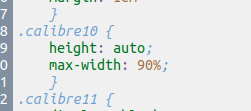
I usually edit the file stylesheet.css, and I edit the class calibre10, that is the class for images in my document.
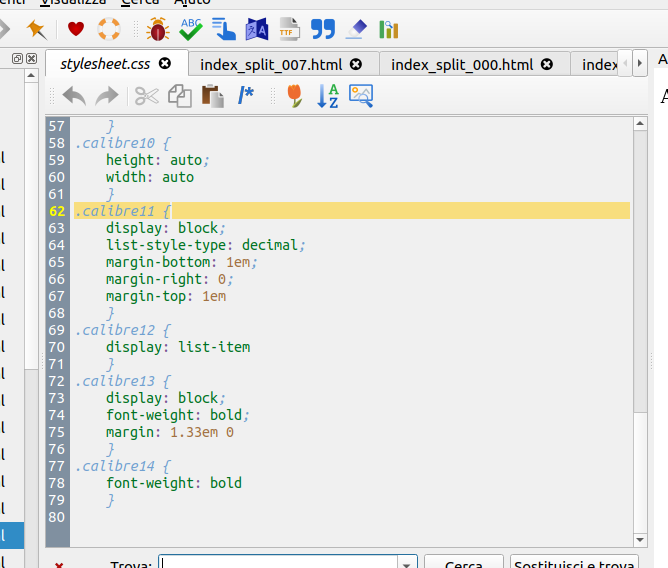
I replace the line width: auto; with max-width: 90%. This will adapt the width of the image to fit at maximum 90% of the size of the page.
Now you can edit the index of the book. In the second menu bar, click on the icon with the index finger to edit the index of the book. I usually click on generate index from all headings, and edit out the ones I don’t care about. Click ok when you’re done. Now save with File > save or CTRL+S.
Your EPUB ebook is done! You can now convert it to MOBI, if you like, with the convert option on the upper menu.
How to convert with ebook-convert
You can find all the options to ebook-convert and a guide on its use at the ebook-convert guide here.
The options I chose are already explained in the last part. This is how to execute them from command line:
ebook-convert manually-convert-pdf-epub.md prova.epub --output-profile
kindle --authors "bayblog writer"
--title 'How to manually convert from pdf to epub'
--formatting-type markdown --paragraph-type block
You can also edit the .epub file to add images and edit the style sheet (called stylesheet.css) with an archive manager. To do so, you should rename your book.epub file to book.zip. You will find the style sheet in the style folder. In order to edit the index, you have to edit the file toc.nox. When you’re done adding images and editing the index, you can save the file, and rename it to book.epub.
How to convert with pandoc
Pandoc doesn’t support conversion to mobi or azw, so I advise using calibre, if you want to read your e-book on your kindle device. You could also use pandoc for the conversion to EPUB, and then convert from .epub to .mobi with another tool.
In the pandoc documentation, there are very clear instructions on how to convert into EPUB. According to the the linked media part of the guide, “by default, pandoc will download media referenced from any ,
These are the instructions I gave to convert the file from .md to .epub.
pandoc manually-convert-pdf-epub.md -o manually-convert-pdf-epub.epub
--metadata title="How to manually convert from pdf to EPUB or MOBI"
--metadata writer="bayblog writer" --toc
The --toc options will automatically generate an index. If you don’t like the results, you can edit the toc.nox file that is into the .epub archive. I also advise editing the stylesheet.css file, in order to set the maximum width of the images to 90%, so that they won’t overflow the document.
This is the result of the conversion with pandoc: manually-convert-pdf-epub.epub.
You’re done!
Now that you have your e-book, have fun reading it, and share it with your friends.
27/04/2023